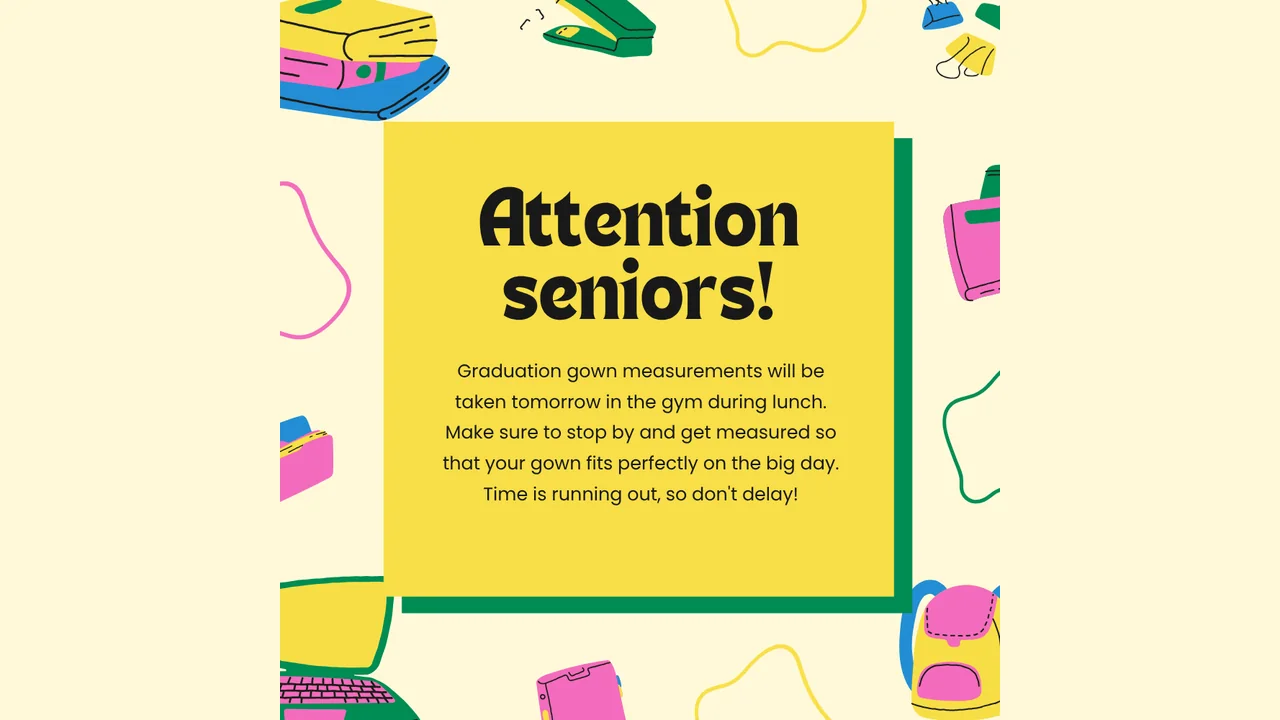
Digital Signage for Schools — Notices, Events and Emergency Messages
How schools use digital signage for daily notices, events and emergency messages. Where to put screens, what to show, safeguarding points and costs.
By the onday team · · 4 min read
Schools communicate constantly: room changes, club reminders, exam timetables, visitor information, celebrations. Much of it still travels by paper notice, assembly announcement and email that nobody reads. Screens in the right places carry these messages to students, staff and visitors where they already are.
This guide is for school business managers, IT staff and teachers who have been asked to "sort out the screens".
Where screens earn their place
- Reception. Welcome visitors, show sign-in instructions and present the school at its best.
- Corridors and social areas. Daily notices, clubs, deadlines and house points.
- Canteen or cafeteria. Menus and allergen information.
- Staff room. Cover arrangements, duties and reminders.
- Hall or sports entrance. Events, fixtures and results.
Start with one or two. A single well-kept screen in reception does more than six neglected ones.
What to show
Every day
- Today's notices and room changes
- Clubs and activities running today
- The lunch menu
Every week or term
- Term dates, parents' evenings and open events
- Exam timetables and deadlines
- Sports results and upcoming fixtures
- Student achievements and house points
When needed
- Weather closures and transport changes
- Emergency instructions
Keep each slide to one message with large type. Students walk past in seconds.
Emergency and urgent messages
A screen network is a useful extra channel in an emergency, alongside your existing alarms and procedures. It is not a replacement for them.
In onday, a broadcast from the Screens page replaces whatever is playing on every screen within about 15 seconds, and normal content returns when you stop it. Schools use this for lockdown or shelter instructions, evacuation information, and everyday urgent notices such as a cancelled event.
Two practical points:
- Agree the wording in advance. Decide the exact messages with your leadership team and keep them ready.
- Decide who can send one. Limit it to a small number of trained staff.
Letting staff contribute safely
The quickest way to keep screens fresh is to share the work. The quickest way to an embarrassing slide is to share it without limits. Roles solve this.
- Admin: IT or the business manager. Controls screens, team and billing.
- Editor: office staff and heads of department. Can add and schedule content.
- Viewer: can look but not change.
Screens can also be grouped, for example "corridors" and "reception", so one schedule covers several displays.
Safeguarding and privacy
Screens are public, so the usual rules about student information apply.
- Photos and names. Follow your school's consent records before showing a student's image or full name. This matters most on screens visitors can see.
- Personal data. Do not show information about individual students' health, behaviour or circumstances. In the UK this falls under data protection law. In the US, FERPA governs student education records. Follow your school or district policy.
- Web content. If you show a live web page, choose one you control or trust. A snapshot of a page is more predictable than an interactive one.
- Reception screens. Assume anything shown there is public.
Hardware schools already have
Most schools can start without buying anything.
- TVs and large monitors already on walls.
- Interactive panels in shared spaces, used in their idle time.
- Old computers or mini-PCs, which can run a browser in kiosk mode.
- Low-cost Android TV or Fire TV sticks for TVs with no smart features.
For screens that must recover by themselves after a power cut, an Android TV device in kiosk mode is the most dependable choice. Timers can switch screens off in the evening and back on before school, which saves energy over a year.
A note on networks: school networks often filter traffic or isolate devices. Ask your network manager to allow the player device to reach the signage service, and prefer a wired connection where there is one.
Using Google Slides and existing tools
Schools on Google Workspace or Microsoft 365 already have a content tool. A shared Google Slides deck that staff or students edit can be shown live on a screen: add its link as a web item and edits appear without anyone opening the signage dashboard. Our guide to showing slides on a TV explains the options.
A student digital-leaders group maintaining one deck for student notices is a low-effort way to keep content current.
Budgeting
Most signage software charges per screen each month. Across a school with fifteen screens that becomes a meaningful annual line. onday charges per account: one screen is free, up to 10 screens cost $19 a month and up to 50 cost $49 a month. A whole school, or several, fits in one plan. See pricing and the cost guide.
A first-week plan
- Pick one screen, ideally reception.
- Create a free account and pair the screen.
- Make five slides: welcome, today's notices, this week's events, a celebration, the lunch menu.
- Schedule them for school hours.
- Give one colleague Editor access and ask them to update the notices each morning.
- After two weeks, decide where the second screen goes.
Read more about onday for schools.